
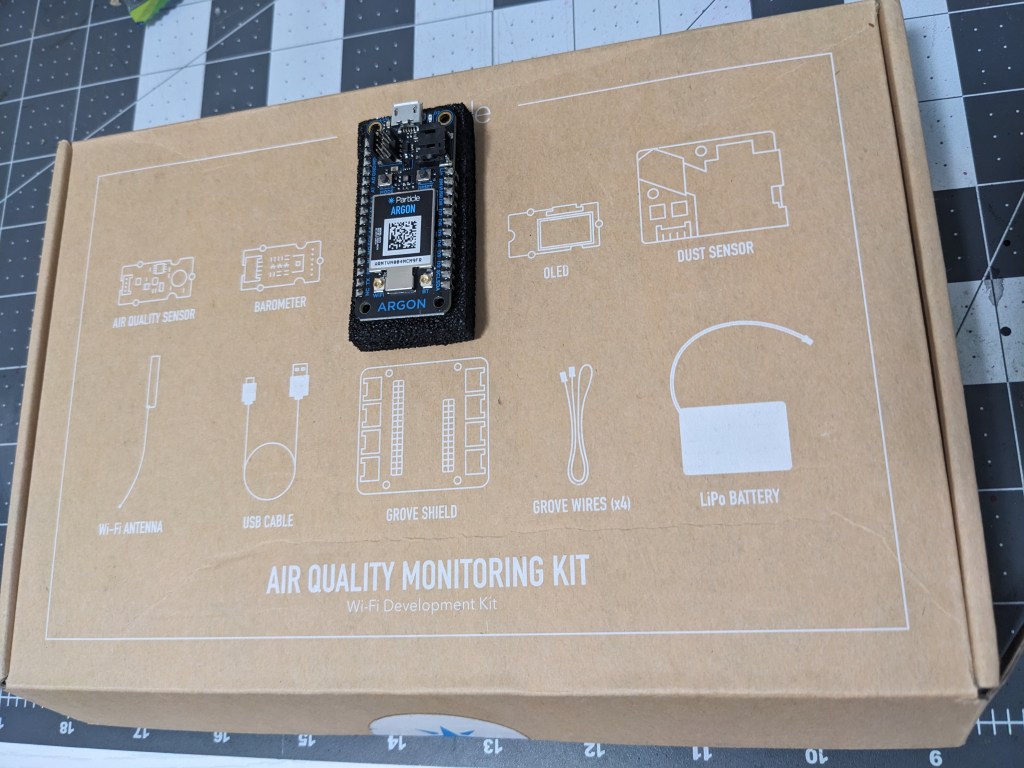
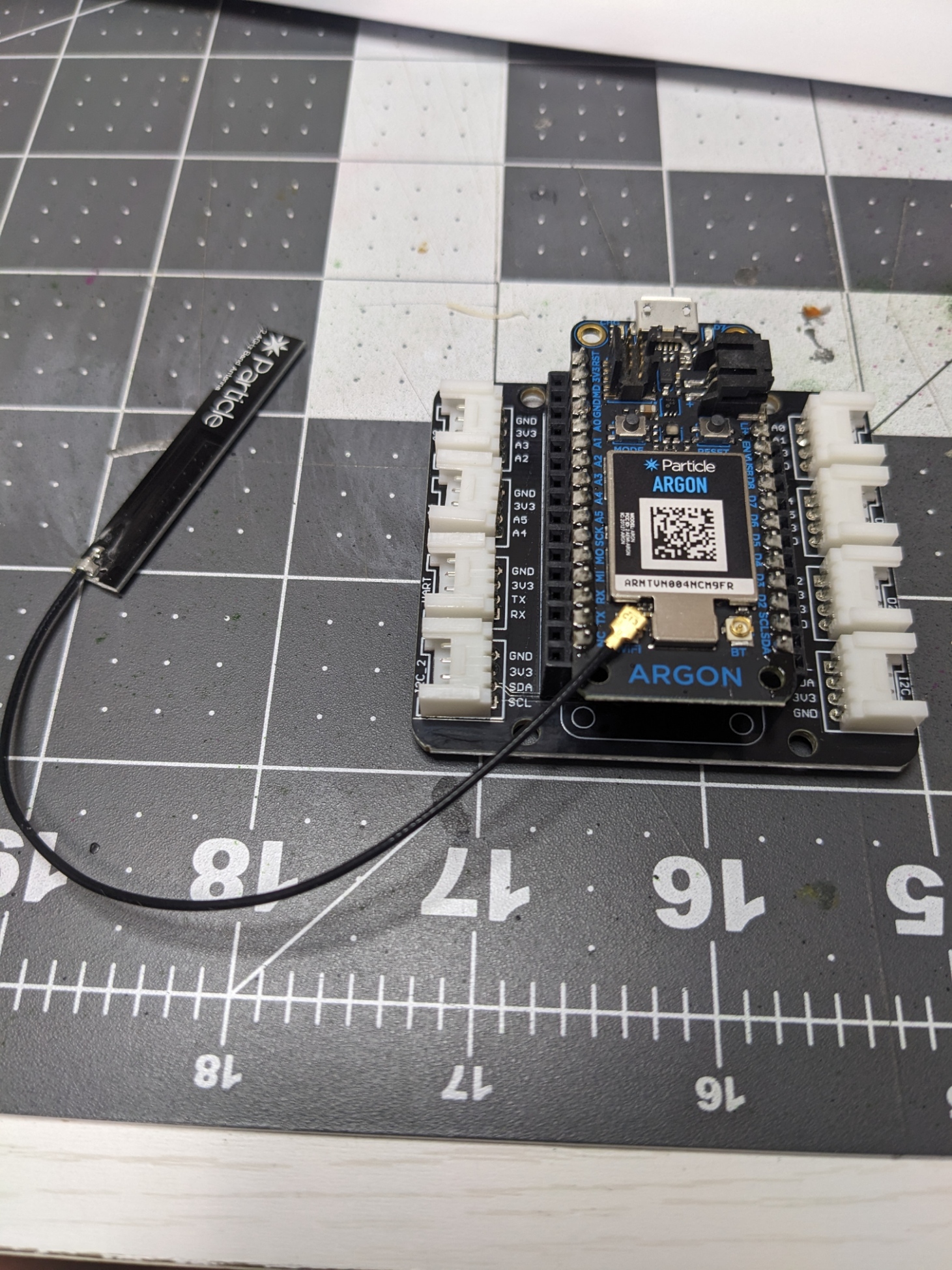
I picked up an older kit (older because it uses an Argon) and finally got around to setting it up!
- In VS Code with Particle Workbench installed, press “Ctrl+Shift+P” and Particle:Create New Project
- I saved mine as AirQuality under my GitHub local folder.
- No, claim hte argon device. The Argon is older, so the normal way of claming one doesn’t work (or work as easily).
- Connect the Argon you your PC and go to the Particle setup page (https://setup.particle.io/)
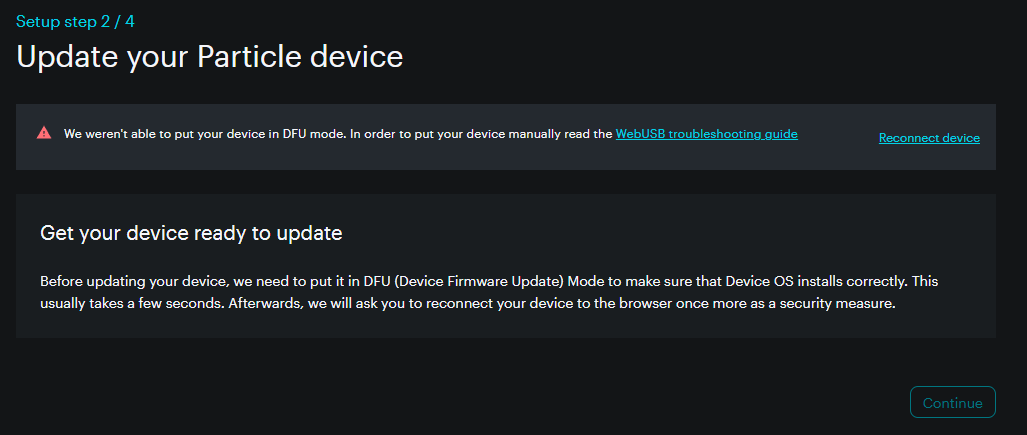
3. Then I had to put my Argon into DFU mode manually.
- (“The best option is to put the device into DFU mode (blinking yellow) manually by holding down MODE (or SETUP), tapping RESET, and continue holding down MODE until the status LED blinks yellow, then release.”) (https://docs.particle.io/troubleshooting/guides/build-tools-troubleshooting/webusb-errors/)
4. That worked, and I named it AirQual.
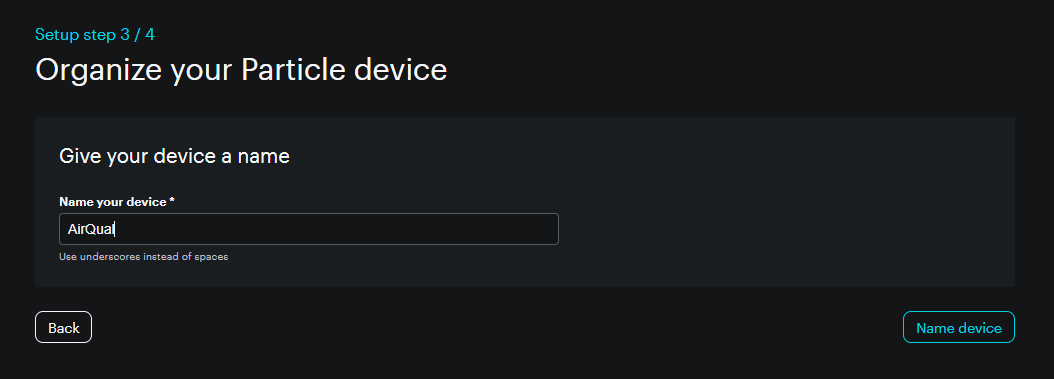
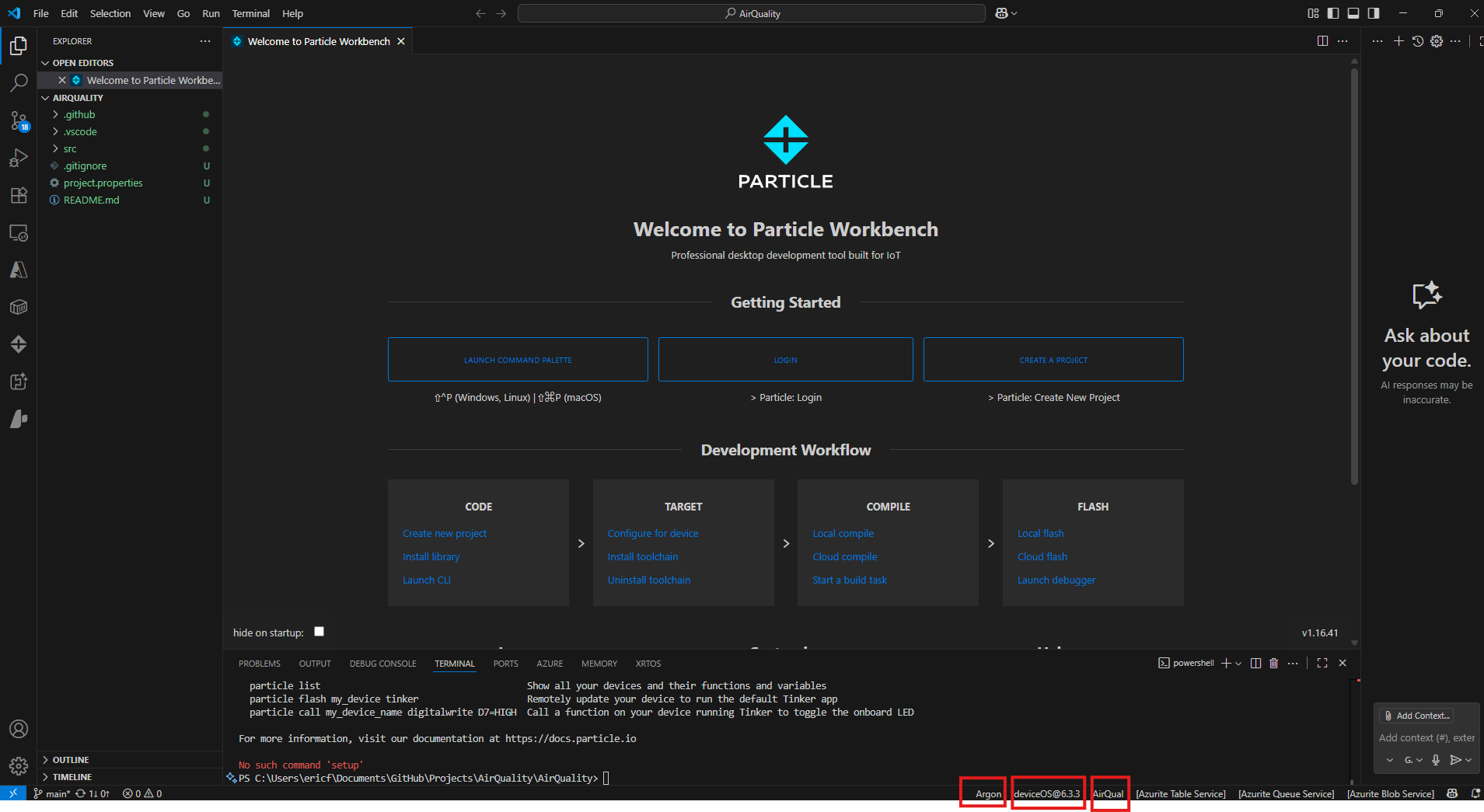
The Device is now active in Particle Console. I also configured the project for the device in VSCode Particle Workbench (note the red rectangles in the bottom of the below image).
Coding
Within VS Code, we have the standard routine that Particle: Create New Project creates, in a previous step.
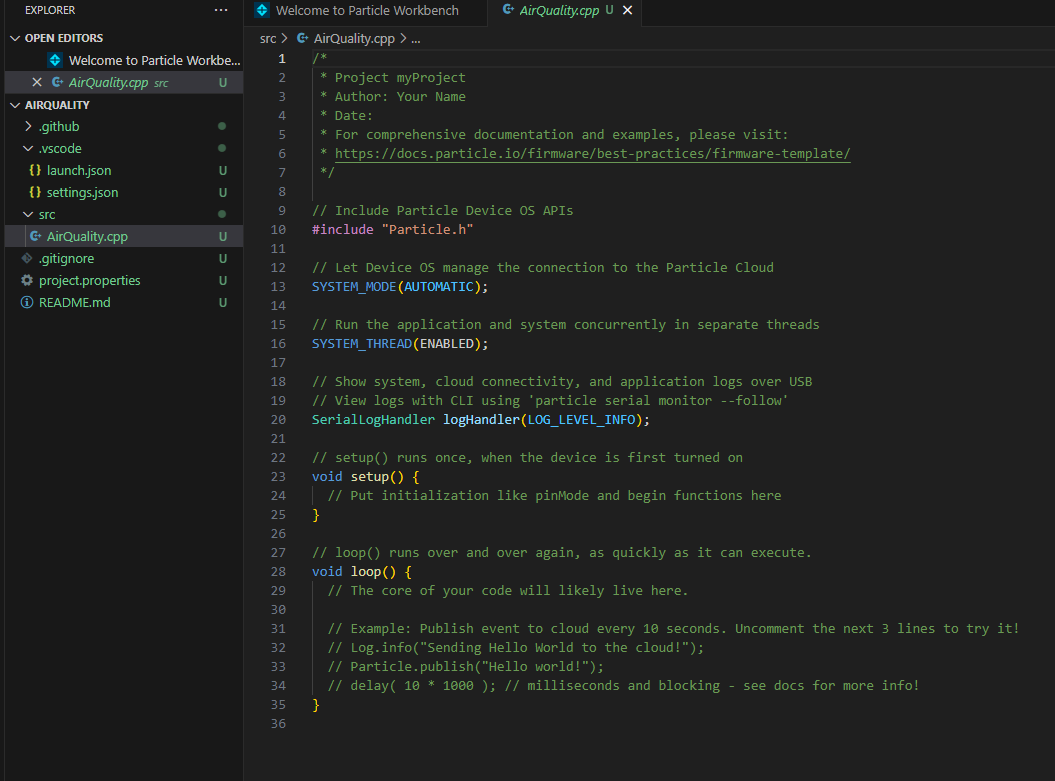
Under the #include “Particle.h” statement, add:
#include <math.h>
#define DUST_SENSOR_PIN D4
#define SENSOR_READING_INTERVAL 30000
Also add some universal variables under those last #include statements:
unsigned long lastInterval;
unsigned long lowpulseoccupancy = 0;
unsigned long last_lpo = 0;
unsigned long duration; float ratio = 0;
float concentration = 0;
Install po-util so that Particle can handle installing and configuring libraries.
Not po-util though, because neopo is it’s replacement
make sure python is installed and added to tha system PATH environment
 Tech Struggle City
Leave a comment